
UPD — I got this wrong
I originally presented this as a Plex setup and treated remote access as part of a free personal-media server. That was my mistake: I did not check Plex’s current pricing rules before publishing the original version.
For this setup, Plex has effectively become a paid service. Plex is not completely paid: Plex Media Server and playback of personal media on the same local network remain free. But the part that mattered most here — remote streaming of personal video — now sits behind the paid Remote Watch Pass. The mobile apps also have their own unlock and Plex Pass rules. In other words, Plex is no longer a free answer for this particular use case.
So I removed Plex from DietPi and replaced it with Jellyfin. Jellyfin is free software with free official clients and no subscription requirement, which fits this small self-hosted library much better. The Jellyfin project lists clients for Android, WebOS, and the web.
Jellyfin on the same Orange Pi
The migration kept the useful parts of the original setup intact:
- the Orange Pi Zero 3 still runs DietPi on ARM64
- the movie library is still on the USB HDD at
/mnt/media_hdd/Movies - Jellyfin listens locally on port
8096 - local access works from the home network
- remote access works through the Orange Pi’s Tailscale address, without opening a router port
- Homer now links to Jellyfin on both LAN and Tailscale
The first Jellyfin checks were deliberately simple: the web client opened the library, a 4K HEVC file kept its 3840×1920 resolution, and playback reported zero dropped or corrupted frames. The browser showed Remuxing, which means Jellyfin repackaged the container without re-encoding the video — a much better workload for this little board than full video transcoding.
The HDD sleep setup also stays in place. hd-idle lets the drive spin down after inactivity, and Jellyfin wakes it when a film needs to be read. The same small board can now serve the LG TV locally and the phone remotely, while the browser remains a useful fallback.
The Jellyfin logo in the hero image is by the Jellyfin Team and is used under CC BY-SA 4.0; I added a white background for this page.

Previous version: Orange Pi Zero 3 Becomes a Plex Media Server
The following is the original version of this post, kept for transparency after the service choice changed.
The Orange Pi Zero 3 has a new job: it is now a Plex Media Server.
The setup is deliberately small. The board runs DietPi, the movie files live on a USB hard drive, and Plex serves the Movies library over the home network. The Orange Pi is connected to the router with Ethernet, while the LG TV connects over Wi-Fi. Plex handles the rest.
One library, three screens
The same library is now available from:
an LG 4K webOS TV for the living-room experiencethe Plex app on a phonePlex Web in a browser, both locally and through Tailscale
The TV can play compatible files directly from the server, so the Orange Pi does not have to transcode everything. The first tests included 4K HEVC and 1080p video, which makes the little board feel much more useful than its size suggests.
This is a natural next step for the DietPi setup. The earlier Orange Pi setup log covered the messy first boot and the decision to start over. The later 3.5mm audio fix made the board a better local audio machine; Plex adds a video library without changing that role.
A quiet server, not another appliance
Plex is installed directly on the ARM64 system rather than hidden inside a large stack of containers. That keeps the moving parts easy to inspect: one service, one mounted Movies directory, and one web interface for managing the library.
The remote side also follows the pattern from the Tailscale remote-access post: no new router port, just a private route back to the Orange Pi. Locally, the server is reachable from the home network; away from home, the same Plex Web entry can use the board’s Tailscale address.
It also sits nicely beside Navidrome. Navidrome streams music to a browser, while Plex organizes video for the TV. One small board, two different media jobs, and no cloud library to maintain.
Letting the HDD sleep
The movie library lives on a USB hard drive, so there is no reason to keep the platters spinning all day when nobody is watching anything. I set up hd-idle with a 30-minute timeout: long enough to avoid constant spin-up cycles, but short enough for the drive to go quiet between viewing sessions.
The basic setup looks like this:
sudo apt update
sudo apt install hd-idle
sudo nano /etc/default/hd-idleSTART_HD_IDLE=true
HD_IDLE_OPTS="-i 0 -a /dev/disk/by-id/<stable-disk-id> -i 1800"Then enable the service:
sudo systemctl enable --now hd-idle
sudo systemctl restart hd-idle
The state can be checked without reading the media files:
sudo hdparm -C /dev/disk/by-id/<stable-disk-id>After the idle period, the expected result is standby. The filesystem stays mounted, and Plex wakes the disk when a film needs to be read. Using the stable by-id path matters because a device name such as /dev/sdb can change after a reboot.
The stability check
Plex itself is new, but the host is not. The dashboard below was captured while the Orange Pi had already been running DietPi for more than 109 days:
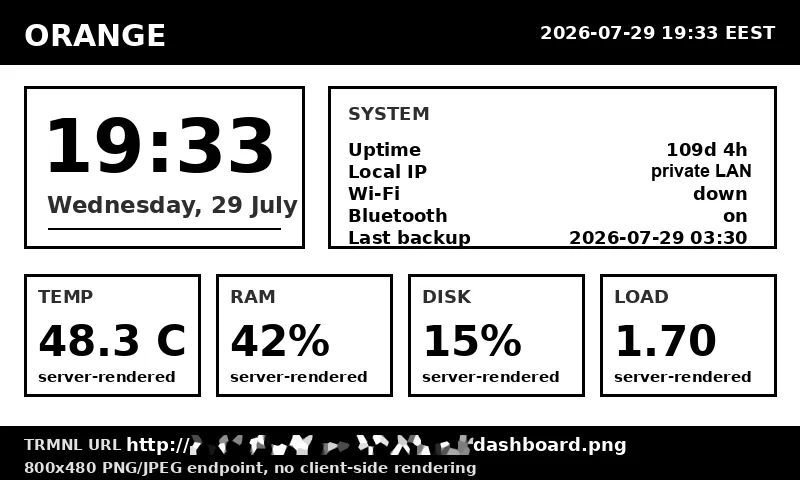
That is the part I care about most. The Orange Pi does not need to look impressive. It needs to stay online, keep the library mounted, and be ready when the TV asks for a film.
The dashboard also connects this project to the earlier DietPi dashboard experiment, where the same machine started sending live system information to an ePaper display. Now it is both a small server and a source of useful status data.
The result
The Orange Pi Zero 3 is no longer just a headless Linux box with a few services attached. It is a compact home media server that can:
keep the movie library on a locally connected HDDserve the LG TV over the home networkserve a phone and a browser clientremain reachable remotely through Tailscalekeep running quietly on DietPi
That is a pretty good return from a board that fits in the palm of a hand.
Plex, Plex Media Server, and the Plex logo are trademarks of Plex and are used here to identify compatibility. This independent post is not sponsored or endorsed by Plex.