Text-to-MOGRT 1.1.9 has passed Adobe review and brings a redesigned panel to Adobe Premiere, with larger controls and a clearer path from source file to editable subtitle clips.
A panel that is easier to follow
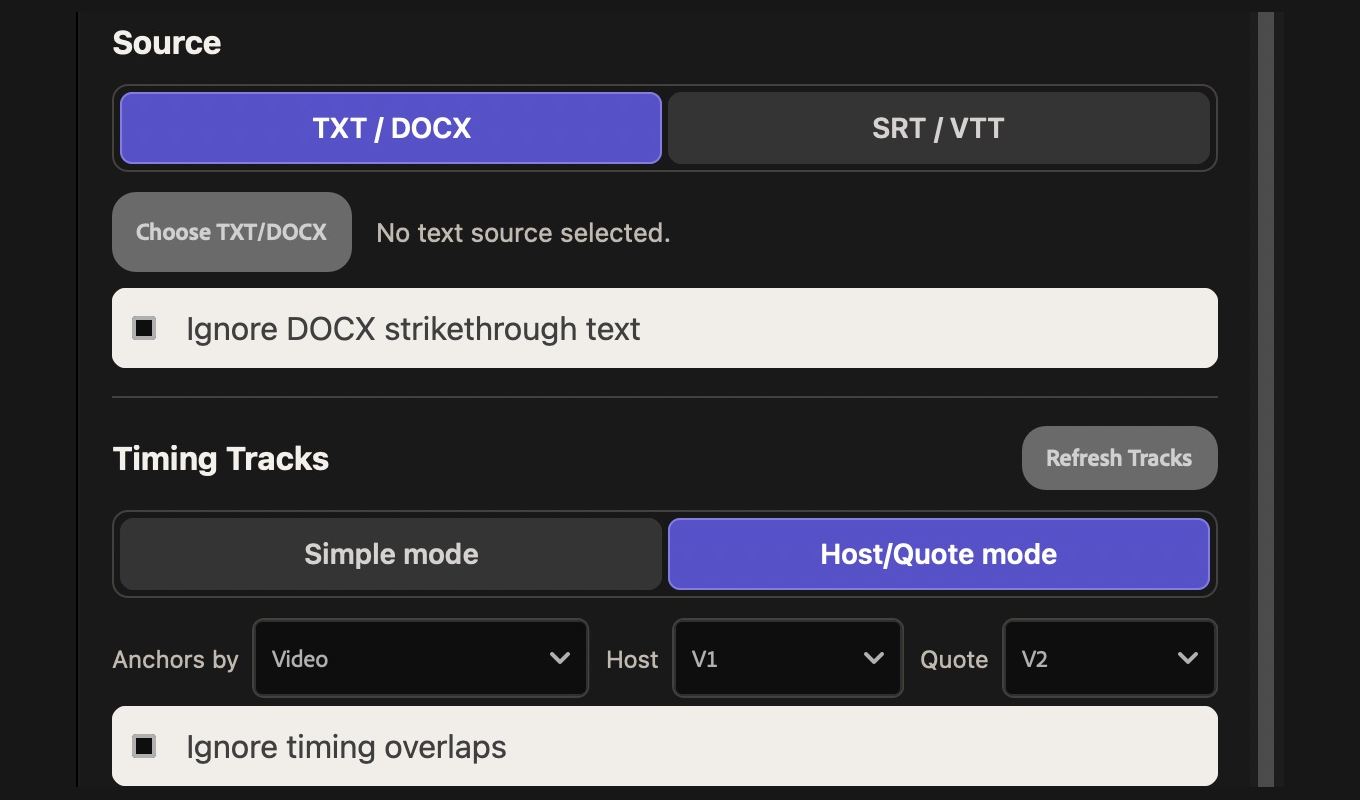
The source and timing modes are now highlighted switches. Timing tracks, template and output tracks, and line settings sit in compact rows, making the panel easier to use at a typical docked width. Important checkboxes have higher contrast, and errors explain what to do next.
A clearer template setup
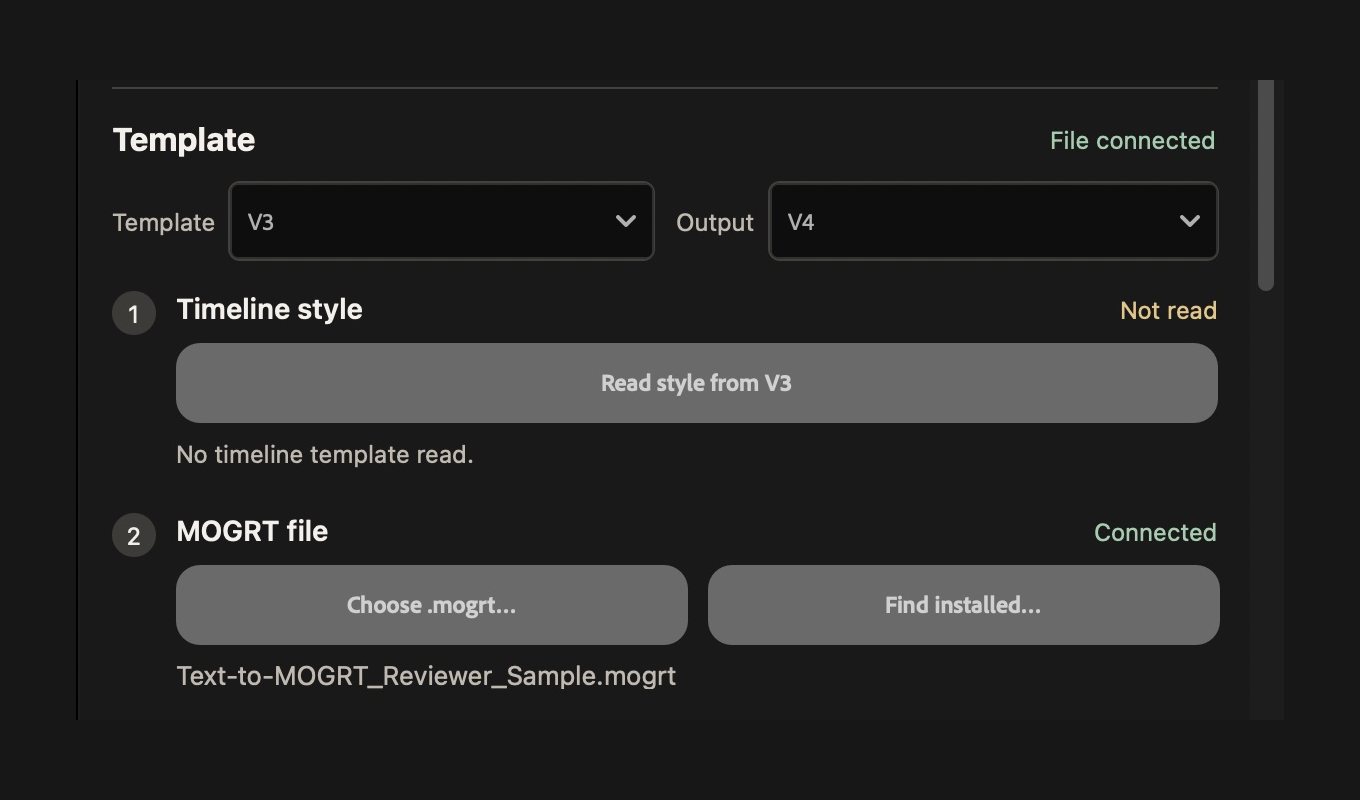
The panel now separates the process into two visible steps: read the style from a MOGRT clip on the timeline, then connect the matching original .mogrt file. The separate statuses make it easier to see what is still needed. You can choose the file directly or find it among installed templates.
More flexibility with timing
If timing tracks overlap, you can choose Ignore timing overlaps. The lower-numbered track takes priority—for example, V1 over V2 or A1 over A2. Preview reports the adjustment; some text alignment may be approximate, so review it before inserting. Existing output clips remain protected.
A cleaner second line
For compatible Premiere-authored two-field MOGRTs, an independent background for an empty second line can now be hidden automatically. When the background cannot be identified safely, the plugin reports the limitation.
Text-to-MOGRT continues to process TXT, DOCX, SRT and WebVTT locally in Premiere on macOS and Windows.
Get Text-to-MOGRT on Adobe Marketplace · Read the user guide