After working on an alphabet and a Chrome extension for reading Ukrainian in Latin letters, I wanted to try the other half of the experience: writing it.
Copying a dotted letter from a character picker is fine once. Doing it throughout a paragraph quickly becomes tiresome. The next experiment is a system keyboard layout that makes our alphabet available where I normally type.
This is Ukrainian Latynka 0.1, a prototype for trying the arrangement in everyday writing. The macOS layout is available to install. The Windows download contains the source for Microsoft Keyboard Layout Creator; a compiled Windows installer is still to come.
Three changes to QWERTY
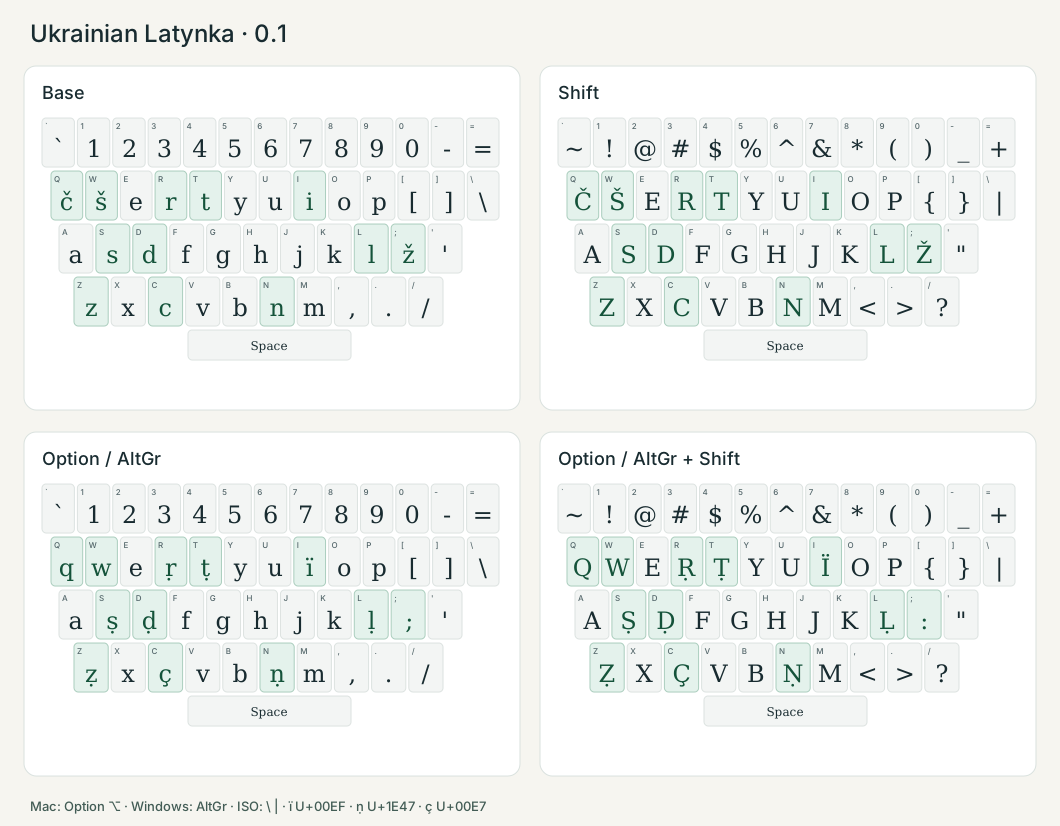
The starting point is US QWERTY. Three physical keys get new everyday jobs: Q → č, W → š, and semicolon → ž. Shift produces Č, Š, Ž.
The original q, w, semicolon and colon are still available through Option on Mac or right Alt / AltGr on Windows. That lets me mix Ukrainian and English without giving up the Latin letters used in English words.
Base
Shift
Option / AltGr
Option / AltGr + Shift
Small labels show physical US keys; large letters show the output. Green highlights the changed keys. Caps Lock reverses letter case; punctuation stays unchanged. The optional ISO key produces \ or |. The number pad is standard.
This is a reference diagram, not an on-screen keyboard. Clicking a key does not type a character.
| Physical key | Base | Shift | Option / AltGr | Option / AltGr + Shift |
|---|---|---|---|---|
| Q | č | Č | q | Q |
| W | š | Š | w | W |
| ; | ž | Ž | ; | : |
| I | i | I | ï | Ï |
| D | d | D | ḍ | Ḍ |
| T | t | T | ṭ | Ṭ |
| Z | z | Z | ẓ | Ẓ |
| S | s | S | ṣ | Ṣ |
| C | c | C | ç | Ç |
| L | l | L | ḷ | Ḷ |
| N | n | N | ṇ | Ṇ |
| R | r | R | ṛ | Ṛ |
The remaining main keys follow US QWERTY. Unassigned Option/AltGr combinations repeat the ordinary layer, with Shift selecting its uppercase or punctuation counterpart. Caps Lock changes letter case; Shift with Caps Lock returns lowercase letters. Punctuation does not change with Caps Lock.
The letters are existing Unicode characters, including Latin ï, dotted ṇ and ç. There are no dead keys or automatic word substitutions. Digraphs such as dž, šč and dẓ are typed one letter at a time. Softness before i is read from context, so the keyboard does not add dots automatically.
Download and install
The macOS download is a layout bundle with optional installation scripts, not a signed application installer. SHA-256 checks the download against the published checksum; it does not replace a publisher signature.
- Download the macOS layout — ZIP. Unzip it, then run the included
install.command, or copyUkrainian Latynka.bundleinto~/Library/Keyboard Layouts. In System Settings → Keyboard → Text Input → Edit, add Ukrainian Latynka and select it from the input menu. If it is missing, sign out and back in after saving your work. - Download the Windows source — ZIP, not an installer. Open
ukrlat.klcin Microsoft Keyboard Layout Creator 1.4, validate it, then build the DLL and Setup Package on Windows 10 x64. The archive includes the steps. This version has not yet been built or tested on Windows. - SHA-256 checksums are available for checking the downloaded files.
The installed layout works independently of the Chrome extension, without a background app or a network connection. Your existing input sources remain available. Command on Mac and Ctrl on Windows keep the familiar US key positions for shortcuts. On Windows, AltGr also shares the Ctrl+Alt state, which can overlap with custom Ctrl+Alt shortcuts.
To remove it, switch to another layout and remove Ukrainian Latynka from your input sources. On Mac, move its bundle to the Trash or use the included uninstall.command. On Windows, uninstall the package built by MSKLC. The archives include full instructions.
Try it here
You can now try the layout without installing it: the browser reproduces the key positions in the two practice fields below. On a phone, open the on-screen keys. To check the native layout instead, choose Test an installed layout and select Ukrainian Latynka in your operating system.
Ukraïna čaj šum žuk siḷ kiṇ žyṭṭa znaṇṇa dẓob
quick wow QW ; :
ḍ ṭ ẓ ṣ ç ḷ ṇ ṛ
Ḍ Ṭ Ẓ Ṣ Ç Ḷ Ṇ Ṛ
Try the layout
Try Ukrainian Latynka here without installing anything. Use a physical keyboard or open the on-screen keys below. No submission or account is needed.
The browser maps physical US key positions in the two practice fields: Q → č, W → š, ; → ž. Shift changes case; Option / AltGr opens the extra layer. Notes, pasted text and keyboard shortcuts stay unchanged. For a phone, IME, or a combination your browser cannot receive, use the on-screen keys. This demo does not test an OS installation.
Practice text stays in these fields in this tab. This page does not send it, save it in browser storage or include it in analytics. Clear all removes the fields’ contents and diagnostics. Ordinary page and download requests may appear in hosting logs; your browser, extensions and operating system are outside this page’s control.
On-screen keys · no installation
Tap a key to insert it at the cursor in the last practice field you selected. Choose a layer for uppercase or dotted letters. These controls do not change your system keyboard.
Try mixed Ukrainian and English. Note awkward Q/W/semicolon presses and Option or AltGr combinations. Copy any observations you want to keep before leaving.
Practice: 10,000 UTF-16 units. Single line and notes: 2,000 each. The page clears the fields when you leave it; browser recovery is outside its control.
Text entered in the practice fields is processed in this browser tab. The page does not send it to the site, store it in browser storage or include it in analytics. Use Clear all to clear the fields and diagnostics. These are practice fields, not a feedback form. Ordinary requests for the page and downloads may still appear in hosting logs. This does not control what your browser, installed extensions or operating system may do.
What I am checking next
The macOS system mapping passed 12,288 automated translation checks, and sample words plus copy, paste, undo and closing a test tab worked in Chrome. That does not settle the question of comfort. TextEdit, physical Caps Lock, held-key repetition and longer writing sessions still need hands-on confirmation. Windows needs its build and practical tests.
I am especially interested in mistaken presses on Q, W and the semicolon key, and how often reaching for Option or AltGr interrupts the writing rhythm. If you try it, you can send observations to mail@zinchuk.online. The page does not automatically attach your practice text to an email.